Showing posts with label Visual Studio 2010. Show all posts

Thursday, February 10, 2011

Check Items in a CheckedListBox Based on String Tokens/ String Array (C#)


I have been scouring the internet for days looking for ways to check items in a checkedlistbox based on an array of strings.

After finding bits and pieces of the solution, and translating some code from VB.NET, I finally created something that is extremely short, efficient, and completes the job.


            //This code takes a string and splits it up based on a comma delimiter.
            //You can use any kind of string array you want,
            //just be sure that your strings match the items in your list box!
            string[] yourStringArray = yourObject.yourAttribute.Split(',');
          
            //The foreach iteratures through your array.
            foreach (string strToFind in yourStringArray)
            {

                //This code finds the index of the string. It will return -1 if it doesnt find it
                int itemIndex = yourCheckedListBox.FindString(strToFind);

                //This code provides a safe guard in case it cant find your string
                if (itemIndex != -1)
                {
                    //This code will actually 'check' the item at the index specified,
                    //based on the index previously found
                    yourCheckedListBox.SetItemChecked(itemIndex, true);
                }
            }

Applications: If your storing previous checked options as one long string, this is easy code to 'recheck' those items, and is exactly what I'm using it for.
Also, using "Select All ---" type of buttons would be a great application ff you have a LOT of items to choose from and you want to allow a user to check all of a certain type, etc.

Friday, February 4, 2011

Guide: How to Clear Checked Items from a Checked List Box (C#)

If you've ever played with checked list boxes before, you know that even though the ClearSelected() method clears the underlying selections, it does not remove the visual checks in the checkboxes on the page. To the user, the control still looks 'checked.'

checkedListBoxWorkPerformed.ClearSelected();


You can fix this issue by adding a short loop:


                for (int i = 0; i <= (checkedListBoxWorkPerformed.Items.Count - 1); i++)
                {
                    checkedListBoxWorkPerformed.SetItemChecked(i, false);
                }

The ClearSelected() method will clear the underlying values, and this loop will clear the graphical 'checks.'

Monday, January 31, 2011

Guide: Creating Transparent, Multiline Labels in VB.NET

To create a transparent background on a label in VB.NET, you must declare a parent to the label, then adjust the color within your form load code.

Example:
The above label was made transparent (so the background picture could show through) by the following code in the form load method:

        lblQuote.Parent = picSpiderman
        lblQuote.BackColor = Color.Transparent


As you may have noticed that labels do not have the boolean 'Multiline' property.

You can make a label multiline in two ways:

~by adjusting the parameters for the 'Maximum Size" property, and setting the Autosize property to true. The text will then autofit into the size you specify.

~by setting the Autosize property to false, and adjust the size of the label directly in the form designer.

Thursday, December 23, 2010

Handy Hint: Make a 'combo box' Read-Only

If you've ever wondered how to make the contents of a combo box read-only, you've probably already noticed that there is no 'read-only' property to set True/False.

After connecting some combo boxes to some fields in a database, I noticed that you could still type over stuff that came through. It didn't really do any harm. (It didn't really do anything to it at all.) However, it could prove to be a bit confusing to application users.

Thankfully, there is a quick and easy way to make the combo box read-only, without inserting any code.

Under the 'DropDownStyle' property, switch it to 'DropDownList'. instead of the default. Your combobox will now be a read-only list oriented drop down box.

Inserting Records in Two Lines of Code

After going through some of the logic with binding certain controls on startup, I've finally started playing around with inserting records. Miraculously, I found two lines of code that will essentially add a simple record into a table.
(I'm using Visual Studio 2010, and Microsoft Access.)

I started by creating a little application that will essentially store transaction information. (I hate balancing my checkbook and have been searching for an easy way to keep track of things.)

The 'Accounts' table will essentially store account names and running totals. (Hopefully, if I can get it to work correctly.)
The 'Transactions' table stores basic information inputted via a variety of controls on the form. (I've used combo boxes, and text boxes.)

After researching various ways to add records (I'm very new at this, and was mildly surprised at all the ways you could do it...) I found a very simple way to get the job done.


            String transactionType = comboBox2.Text;
            String acct = comboBox1.Text;
            String nts = textBox1.Text;
            Double amt = Convert.ToDouble(amountTextBox.Text);


            MoneyTrackerDataSet1TableAdapters.TransactionsTableAdapter transactionTableAdapter = new...        
                                                          MoneyTrackerDataSet1TableAdapters.TransactionsTableAdapter();
            transactionTableAdapter.Insert(transactionType, amt, acct, nts);


First, I loaded into variables all the information I wanted from the controls, then used a simple built in Insert method to insert a new record. Except for the setup code, it was done quickly and smoothly in two lines.

Now, I wonder, how many issues will crop up? I'm sure to do it all properly, there should be checks and other measures in place before you go adding random stuff into a database.

Wednesday, December 22, 2010

GUIDE: Creating a Combo Box that is Dependent Upon Another

Summary: At the end of this guide, you will able to manipulate two combo boxes via an Access database, so that when something is selected on one, it limits what's shown in the second.


You will need Microsoft Access 2007 or later, Visual Studio 2010, and some basic coding knowledge as well as some understand of Access.


STEP 1: Open Microsoft Access and create a database named 'School'.


Create two tables: 'Teachers' and 'Classes'.
For the Teachers table create 4 Fields: ID (created automatically), TeachersName, TeachersAddress, and TeachersPhone.


For the Classes table, create 3 Fields: ID, ClassName, and ClassTeacher.

IMPORTANT: For the ClassName, and ClassTeacher fields, in General Field Properties, you will need to select 'Yes (Duplicates Ok)' under 'Indexed'.

The application will not work properly if your fields are not indexed!

Example:

When done, create a few records so that your database is not empty.

I put in three teachers and five classes. (Some teachers will have more then one class!)
Make sure the teachers listed in your Classes table match exactly the teachers listed in your Teachers table under 'TeachersName'.

Example:


STEP 2: Create a New Visual Studio Project Named 'School'. (Visual Studio 2010, Windows Forms)

Add two ComboBoxes to your form:

HINT: If you wish to make your comboboxes read only, go to their properties, and change the 'DropDownStyle' to DropDownList.

STEP 3: Add Database to your Project

On Your Menu Bar go to:
-->Data
----->Add New Data Source

Complete the wizard:
  • Make sure you use a Microsoft Access Database File (OLE DB)
  • Browse to where you saved the Access Database created in earlier steps.
  • Do NOT copy the file to the project.
  • Select 'Tables' when choosing Database Objects. You dont need 'Views'.
What it Should Look Like:


STEP 4: Set Up Your Comboboxes

Select your first combobox, go to the properties bar. (If you cant find it, right click the control and select properties and it will pop up.)

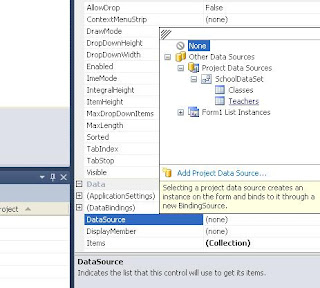
Under the DataSource property, select 'Other Data Sources', 'Project Data Sources', 'SchoolDataSet', 'Teachers'.

Under DisplayMember, select 'TeachersName'.

Visual Studio will automatically create the binding source and the table adapter.


  • Do the same thing for the second combobox EXCEPT Select 'Classes' instead of 'Teachers', and select 'ClassName'.
You will now see two Binding Sources, and two TableAdapaters.

If you 'run' your program right now, your two combo boxes will show populated drop down menus! (Go ahead and try.) However, it's just pulling in everything at the moment.

STEP 5: Modifying the SQL

Right click your 'classesTableAdapter' and select 'Edit Queries in DataSet Designer'.

You sill see what will look close to the following:

Right click on the 'ClassesTableAdapter' and select 'Add' ---> Query.
You are going to write a basic SELECT Query.

The code will go as follows:

SELECT ClassName
FROM Classes
WHERE ClassTeacher = ?

Hint: The '?' in this code denotes a variable. If you are using something other then Access, use @ClassTeacher instead of the '?'

Select both 'Fill a DataTable' and 'Return a DataTable'
Name your Method names 'FillByTeacherName' and 'GetDataByTeacherName'

It will now show the methods under your 'ClassesTableAdapter'.


STEP 6: Using Your SQL Code

Double click your first combobox control.

You will notice two lines of code under the Form1_Load method:

this.classesTableAdapter.Fill(this.schoolDataSet.Classes);
this.teachersTableAdapter.Fill(this.schoolDataSet.Teachers);

This is the code that is filling your comboboxes when the page loads.

We are going to modify the classesTableAdapter code as follows:
this.classesTableAdapter.FillByTeacherName(this.schoolDataSet.Classes, comboBox1.Text);

Now, upon first loading, your second combo box will only show classes corresponding with the default teacher that comes up while the page loads.

To make this work when a different teacher is added we will add the SAME line of code into the
'combobox1_SelectedIndexChanged' method. This way, if another teacher is selected, the second combo box will refresh to show the new options.

Now, your comboboxes should show the correct classes for each teacher selected!


A 20 Hour Fix to a 5 Minute Issue

Well, after staying up late last night, I finally figured out how to get a combo box to 'fill' based on the selection from another combo box. Far into the test, I realized that in the actual application (I'm just playing with a dummy application at the moment) I actually had two tables to do what I was trying to do with one. So, I created a second table in the database and resultingly, a second binding source in Visual Studio.

Once the second binding was in place, I could do a simple lookup in one combo box, then 'fill' the other based on some specialized SQL statements. The actual implementation took about 5-10 minutes, whereas I worked approximately 20ish hours researching on how to do it.

I dont know if it was because I was using a Microsoft Access database, but it was very hard to find thorough information on how to do this simple operation. I found very helpful guides on Microsoft. But, I found that I had to search around a lot...one guide would answer one part of the question, and I'd have to search for another half hour to figure out another part.

For example, I had to look at a separate guide about table adapters, then another about binding sources, then another about adding SQL statements, then another for code relating to filling controls.

Perhaps I'll write my own guide. ;)

Tuesday, December 21, 2010

Database Woes

Finally I am on break and can experiment with a few things without the stress of major deadlines coming up.

Right now, I'm playing with Visual Studio 2010, and am liking the idea of built in source control. My team has been using SVN to date, and have had horrible issues. For starters, differentiating between the files you actually need to control, and which are just auto generated user defined files that everyone doesn't need has been a headache.

I've seen various posts online about getting rid of this or that file, and after trying, have found that other team members' projects suddenly no longer work, and it's back to square one.

At any rate, I'm home for the holidays with no access to the server, so will try the Visual Studio source control functionality when I get back.

On another note, I have had a horrible time using a Microsoft Access database with Visual Studio. Getting drop down boxes to pull in data is no problem, but figuring out how to populate other controls based on a bound control has been a nightmare. For example, I have two drop down menus. (aka. combo boxes) I want the second one to populate based on what is selected in the first one, but cannot find any good resources on specifically how to do this.

I'm sure there is an easy way...possibly through some sort of wizard as Visual Studio seems to have a wizard for everything. However, it doesn't seem like the bulk of information out there is for using Access databases...mainly, because most people probably use something that actually has LINQ functionality. (Probably for good reasons that have not been divulged to me yet.)

Oh well. Still trudging along.